HOW TO ACCESS YOUR PATIENT PORTAL VIA THE WEBSITE
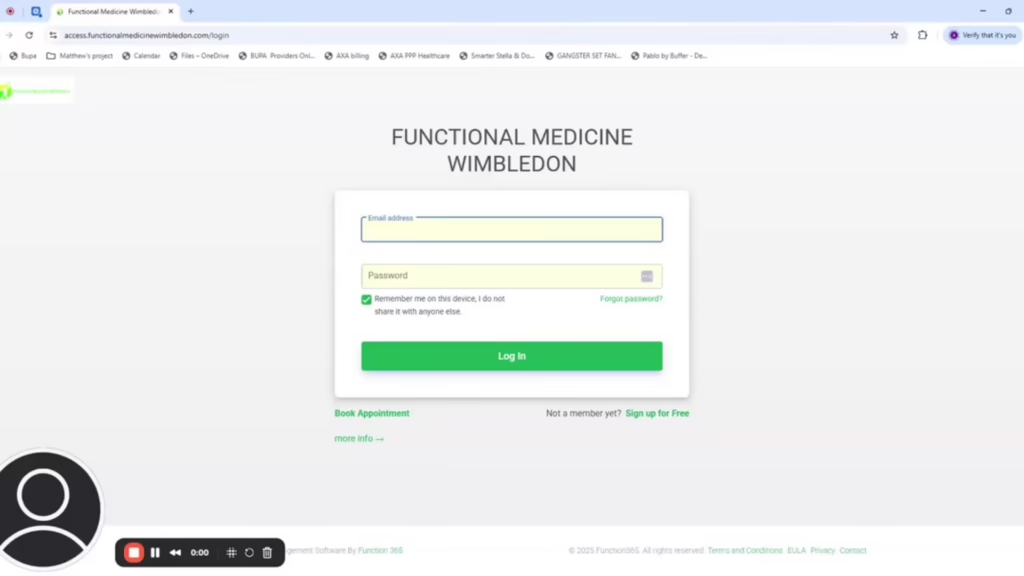
In this video, I guide you through accessing your patient portal on our website. You’ll start by logging in with your email and password, and for first-time users, you’ll need to review and agree to the Terms and Conditions. Once you’ve accessed your portal we will walk you through the various areas of the portal.
Please note: THE DOCUMENTS section is in the MEDICAL HISTORY area and you will find a lot of information saved in this area following an appointment. See the Medical History tab below to remind you where to find your videos.
YOUR PROFILE
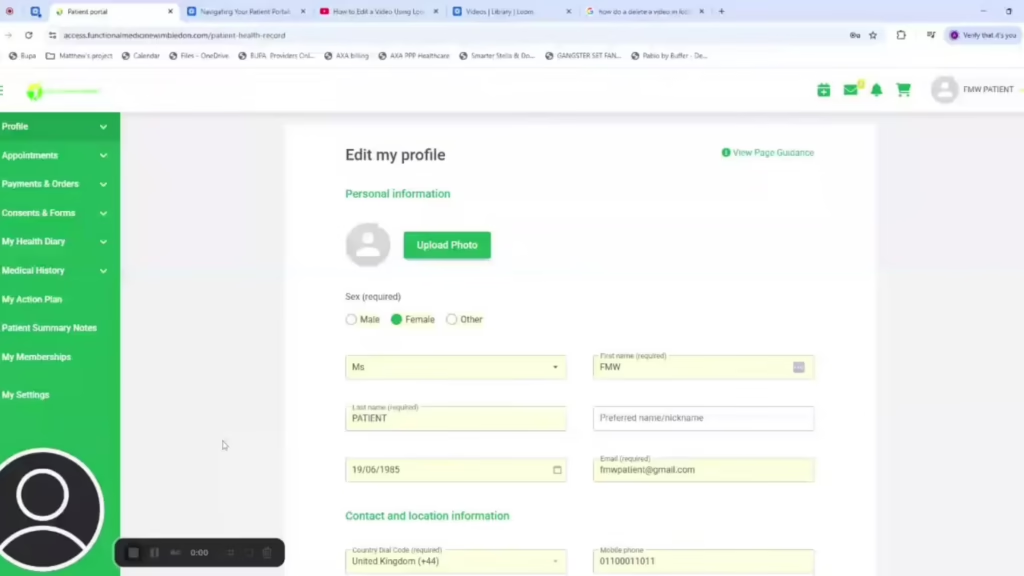
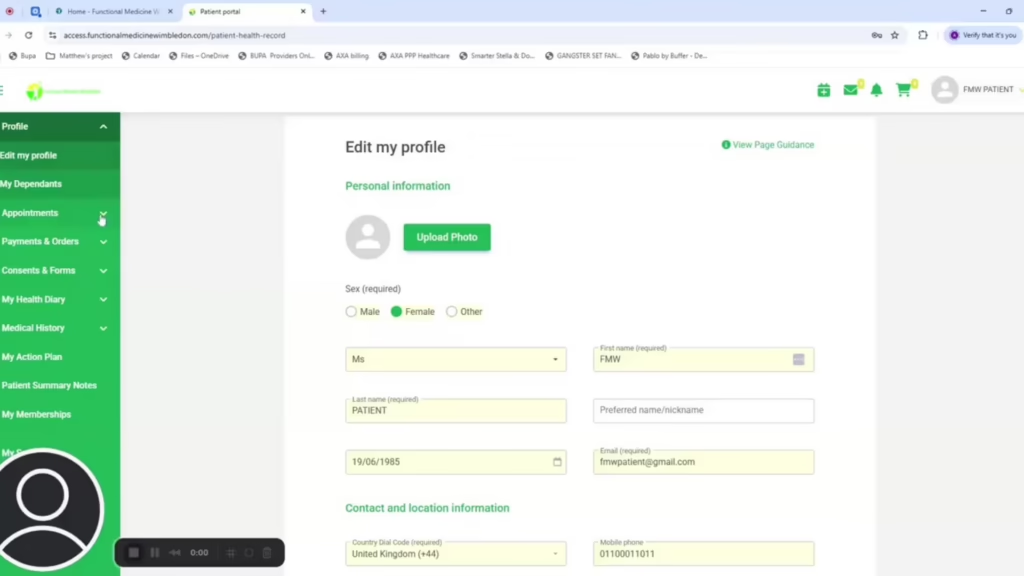
This video helps you to navigate to the ‘Edit My Profile’ section to view your details and add a dependent if you have family members who are also patients with us.
APPOINTMENTS
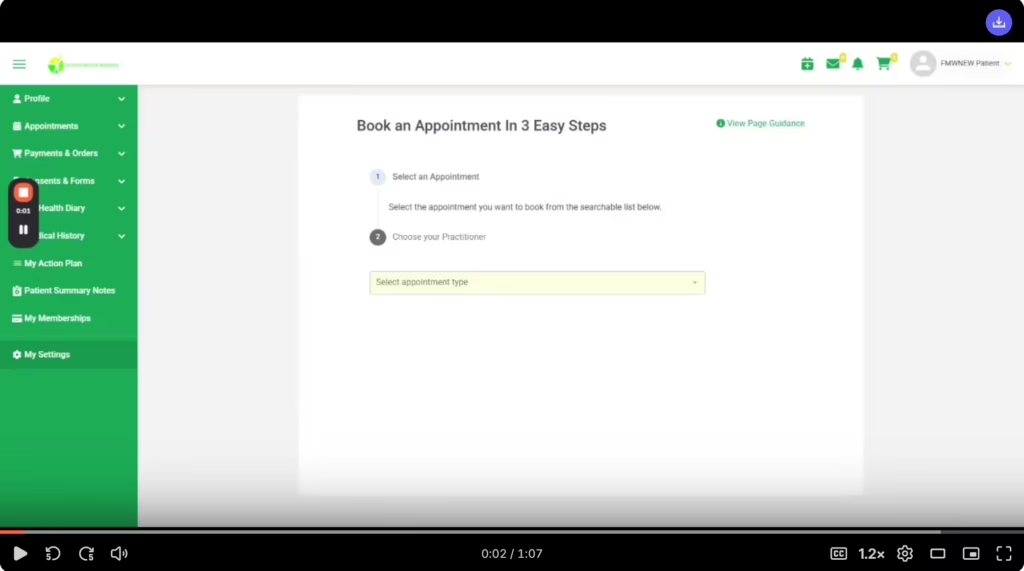
The videos in this section outline steps for booking, viewing, and changing appointments through the portal.
PAYMENTS AND ORDERS
In this video, I walk you through the process of making a payment for an item, whether it’s a test kit or an appointment and show you how you can view previously paid invoices. You can access the Payments and Orders area by clicking on the shopping cart icon or the Unpaid Items section.
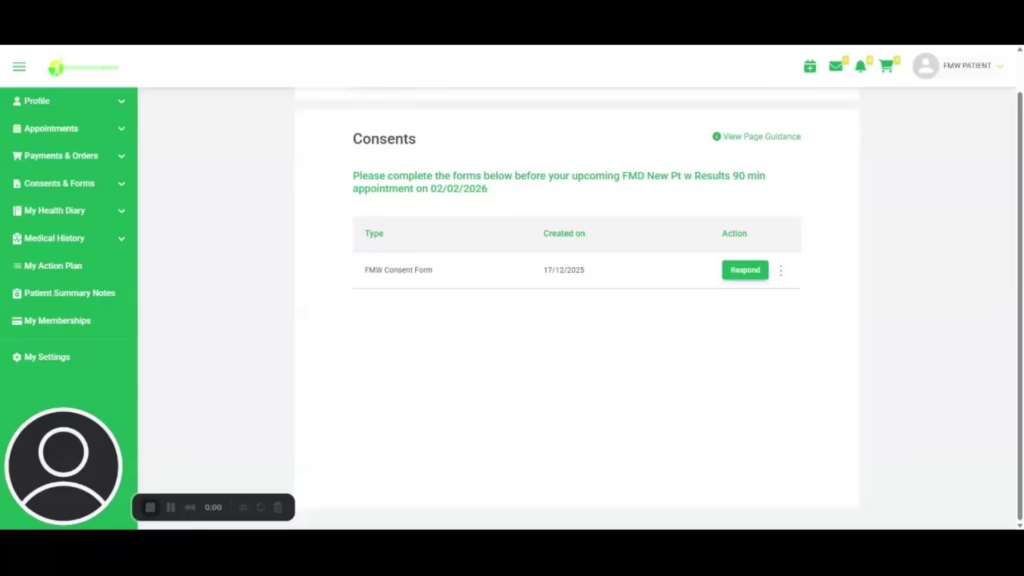
CONSENT & FORMS
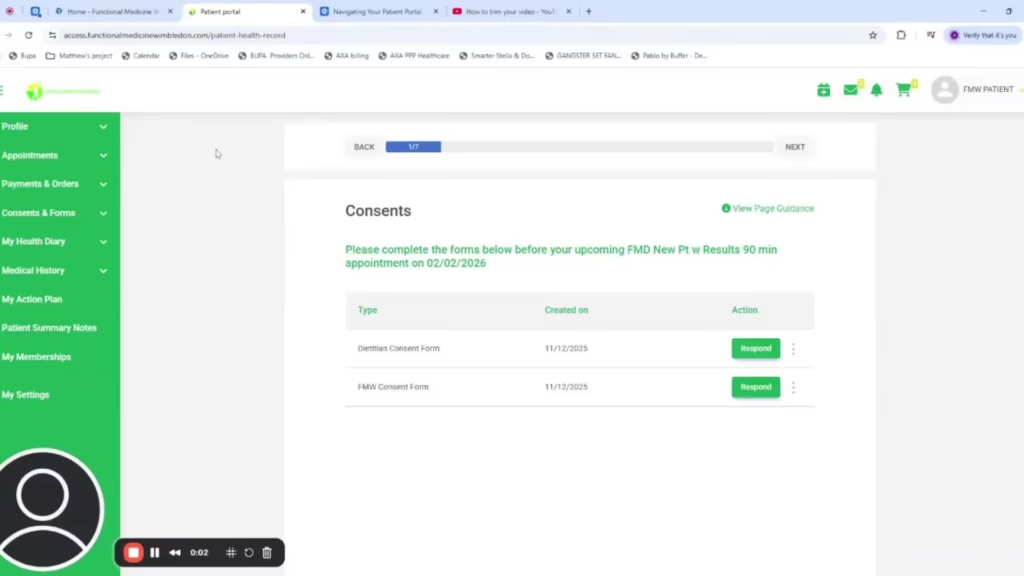
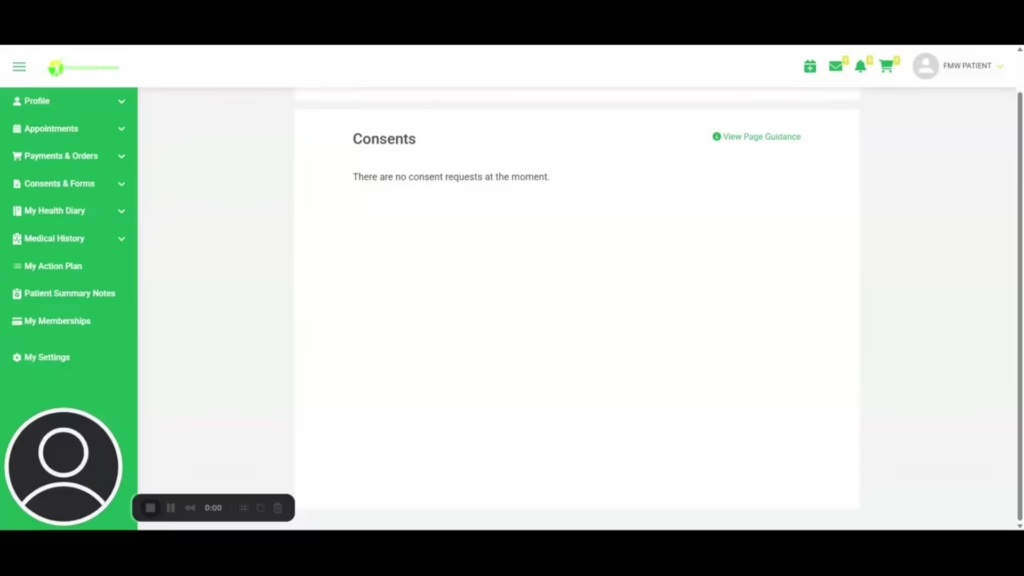
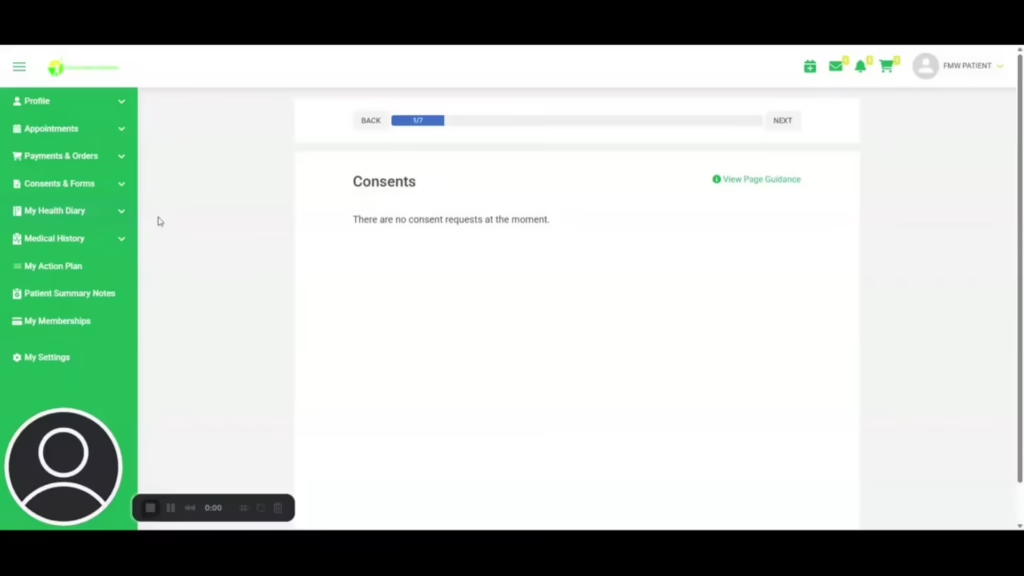
This video explains how to view a consent form and complete the form to show that you have agreed to the information provided.
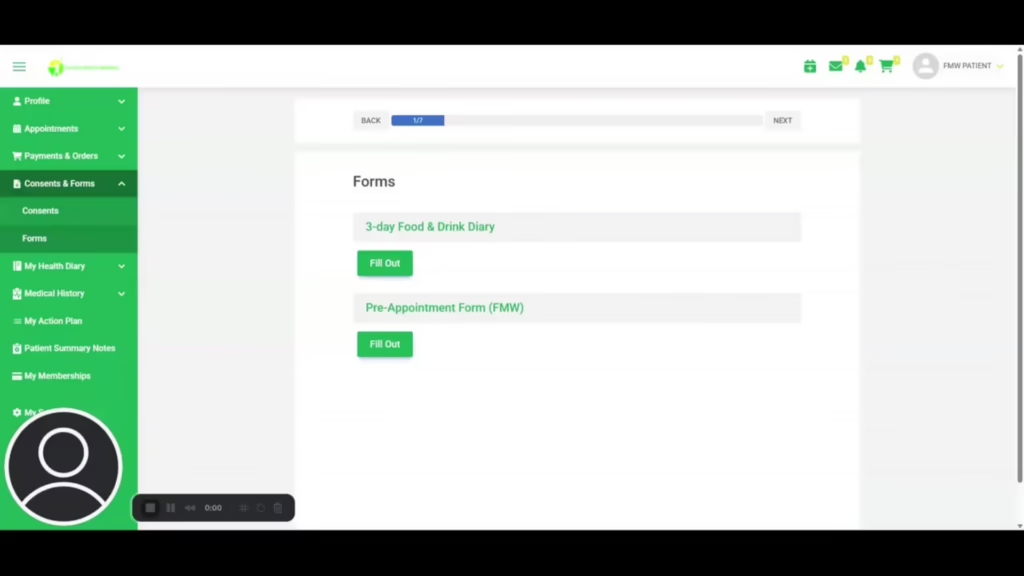
These videos explain the process for completing the below forms which are required prior to a first appointment, consent to use AI transcription tool during consultation:
MSQ Form
This form is required ahead of each appointment as it is how our practitioners track your symptoms.
3 Day Food & Drinks Diary
This form is completed once and required ahead of your very first Dietitian appointment only.
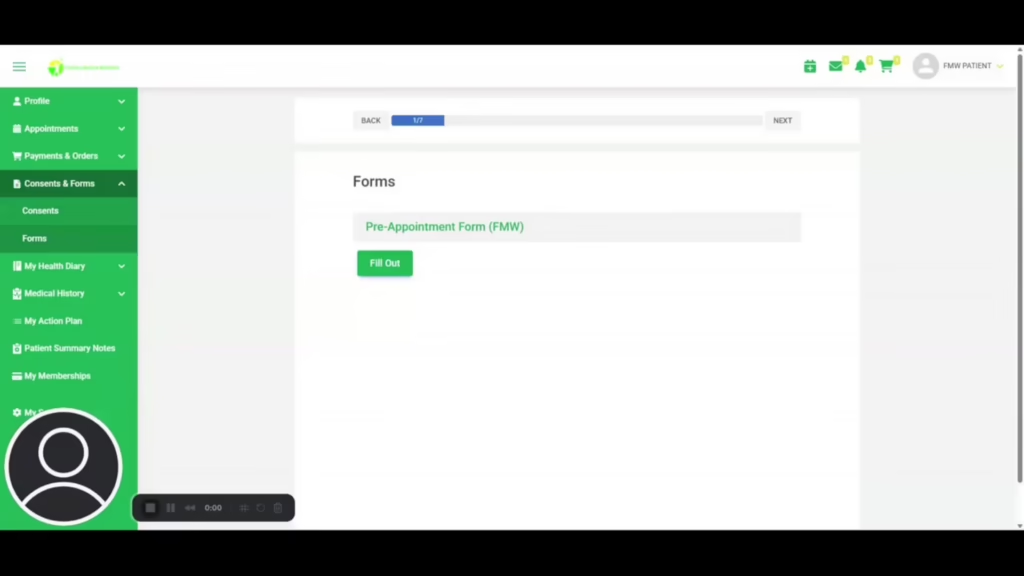
Pre-Appointment Form
This form is completed once and required ahead of your very first appointment with either Doctor or Dietitian.
MY HEALTH DIARY
In this video, I’m introducing you to the My Health Diary section of your portal, which is an OPTIONAL area for you to complete. Many of the questions here may overlap with what you’ll find in the pre-appointment and MSQ sections that we request you fill out before your initial appointment. I’ll walk you through these areas one by one to ensure you understand how to navigate them.
These videos explain the process for completing the below forms which are required prior to a first appointment:
Concerns
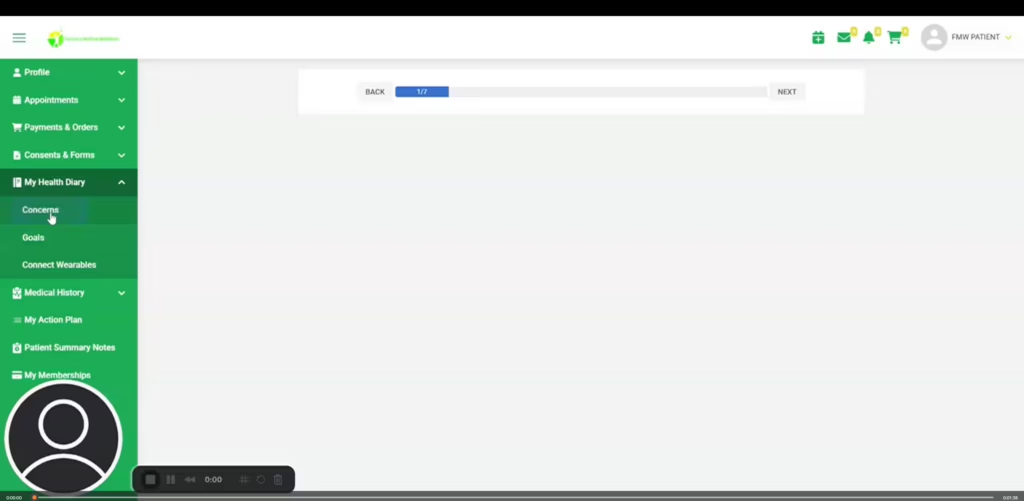
A short video explaining how to add active or past health concerns
Goals
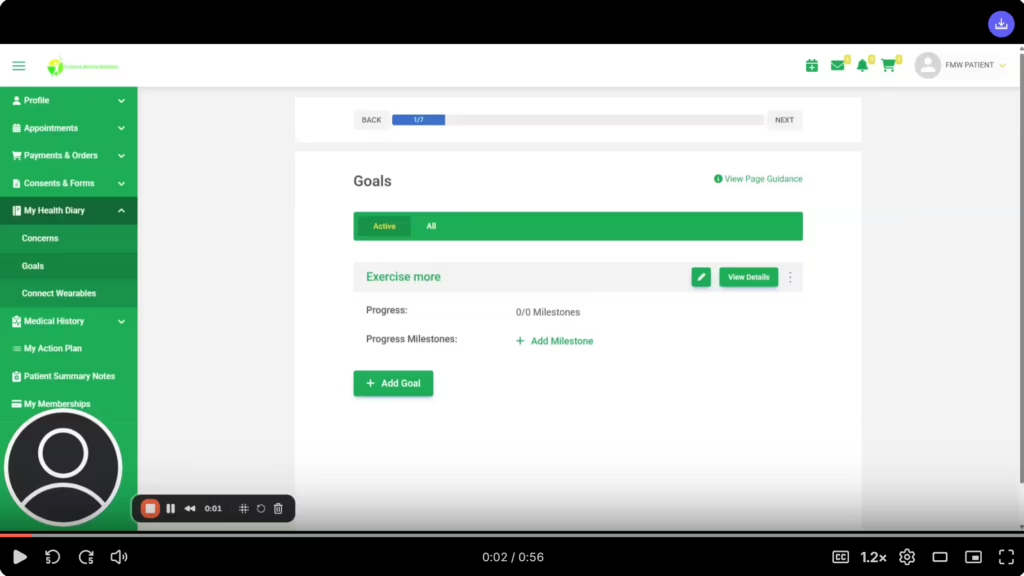
In this video, I walk you through the Goals tab in the My Health Diary area, where you can create personalized goals for your wellbeing. Whether it’s attending mindfulness or meditation classes, training for a marathon, or simply drinking more water, you can select and add your goals easily.
Connect Wearables
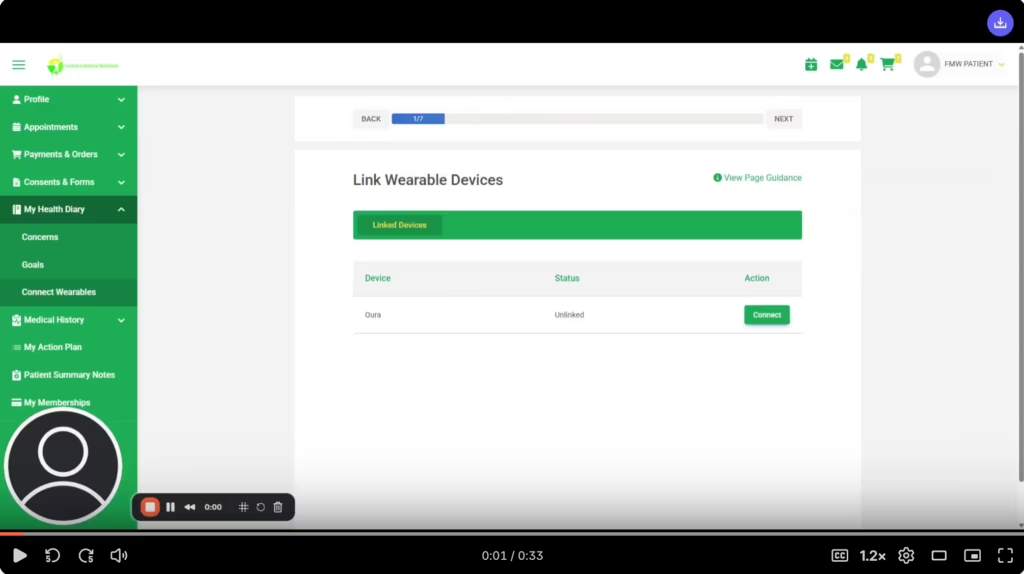
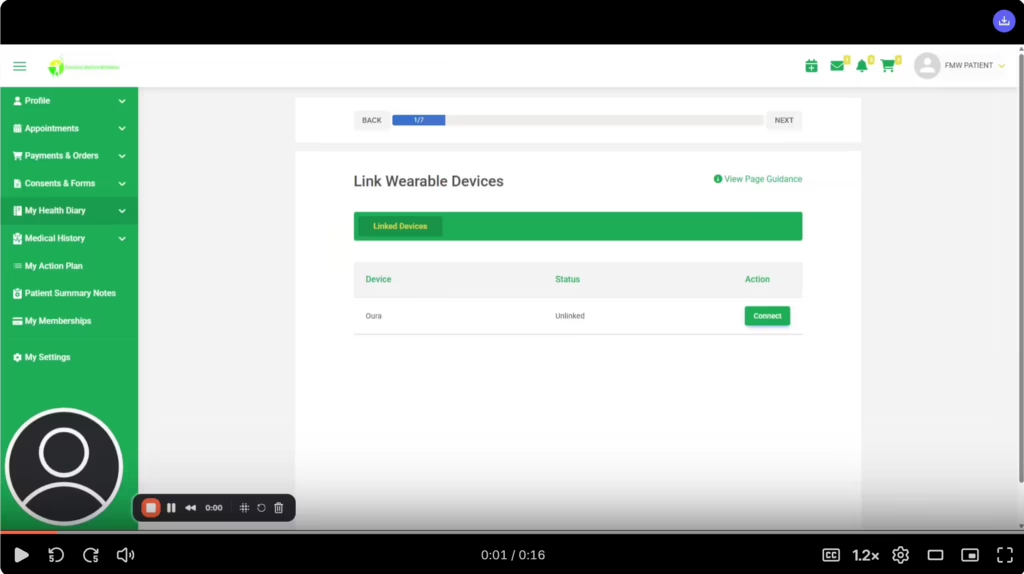
If you use an Oura ring, it is in this section that you can link your Oura ring to your portal. In the future, there may be more wearable options to connect to your portal.
MEDICAL HISTORY
In this video, I discuss the optional medical history area on our portal, which includes sections for allergies, medications, supplements, and family history.
Please Note: THE DOCUMENTS AREA in this section is where you will find a lot of your information following an appointment.
Allergies
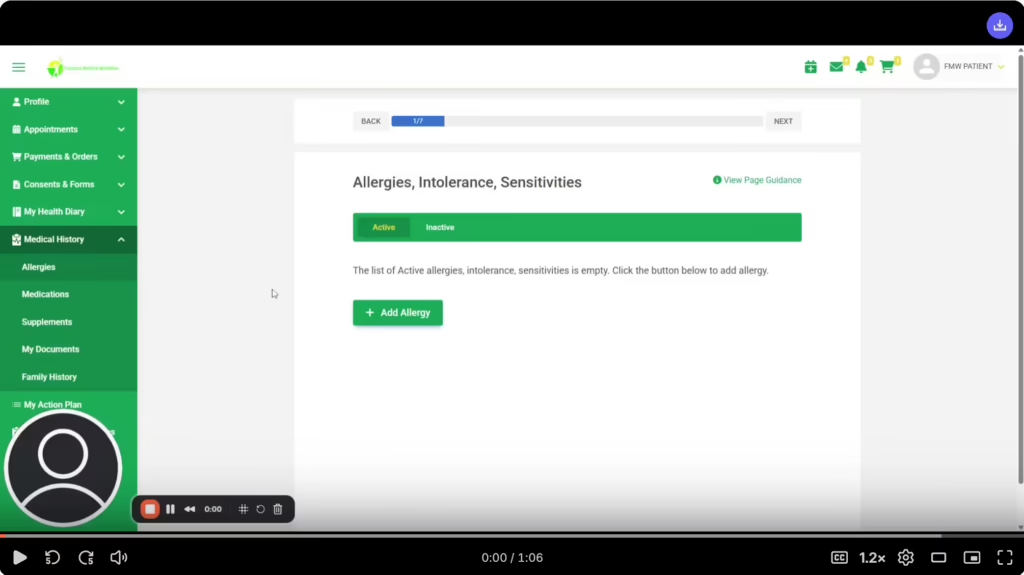
In this video I walk you through how to add your active or previous allergies using the allergies tab, including the exposure problem and the reaction.
Medications
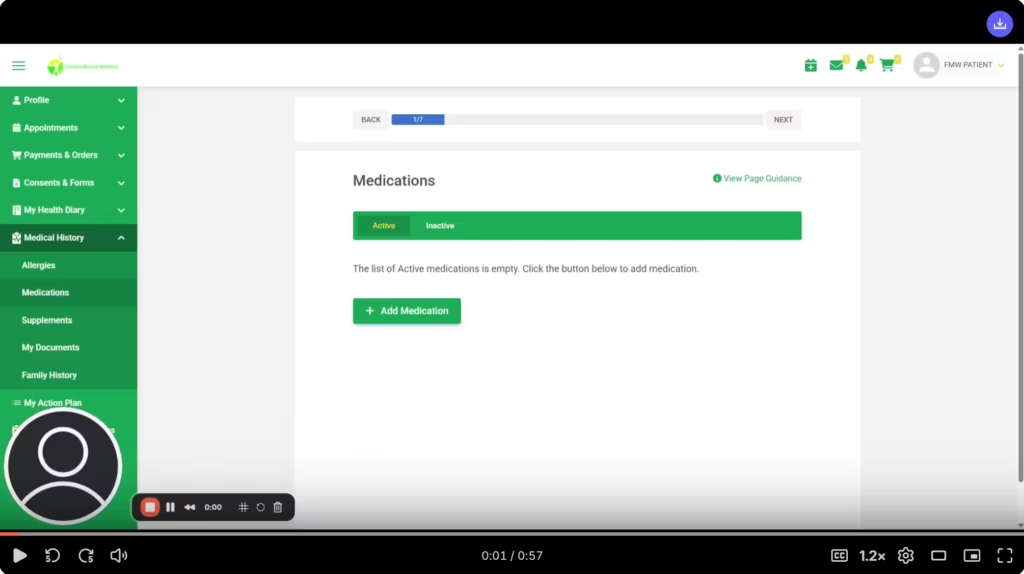
In this video, I walk you through how to document your medications using the Medications tab. You’ll learn how to add both active and inactive medications by providing details such as the name, dosage, and timing of each medication
Supplements
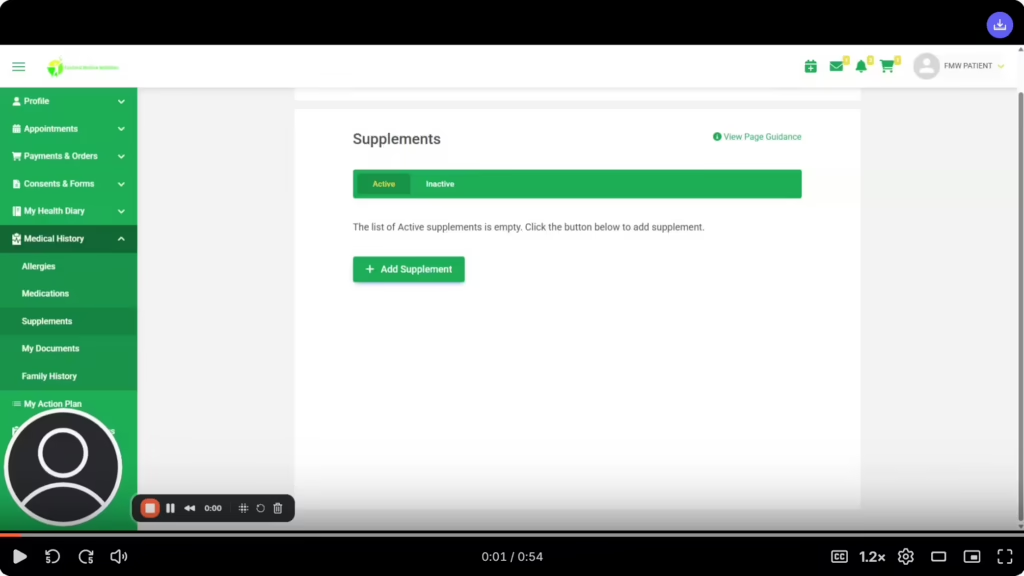
In this video, I walk you through how to add supplements to your health documentation, similar to how you would with medications.
My Documents
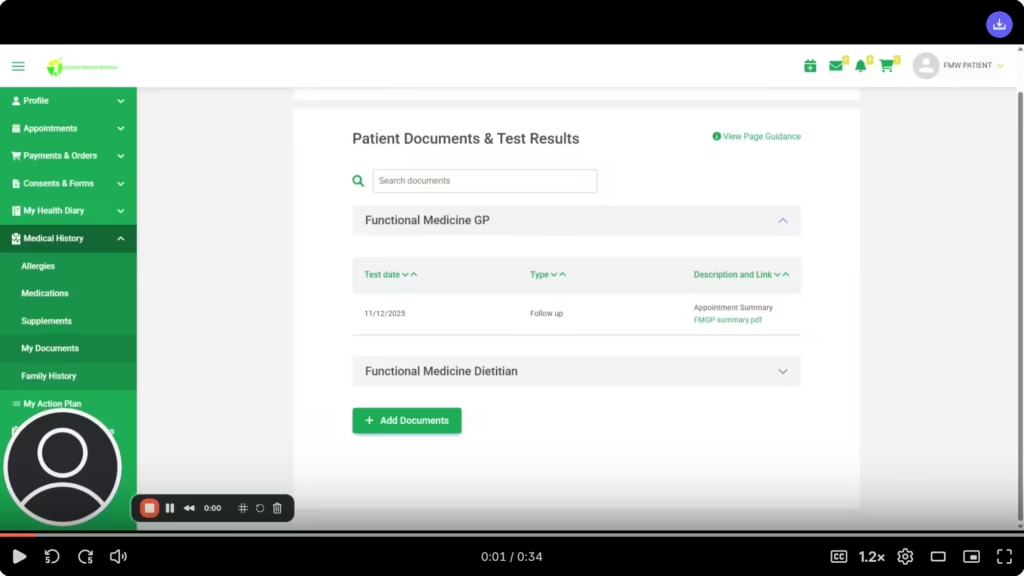
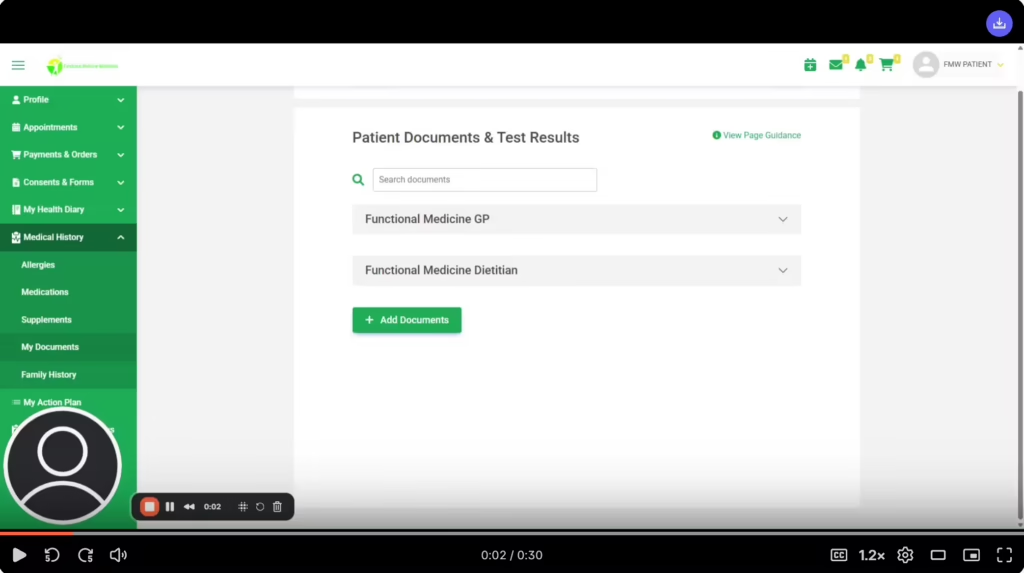
In this video, I walk you through how to find documents and test results to your portal, specifically when using both the Functional Medicine GP and Dietitian areas. I show you how to hide one of the sections.
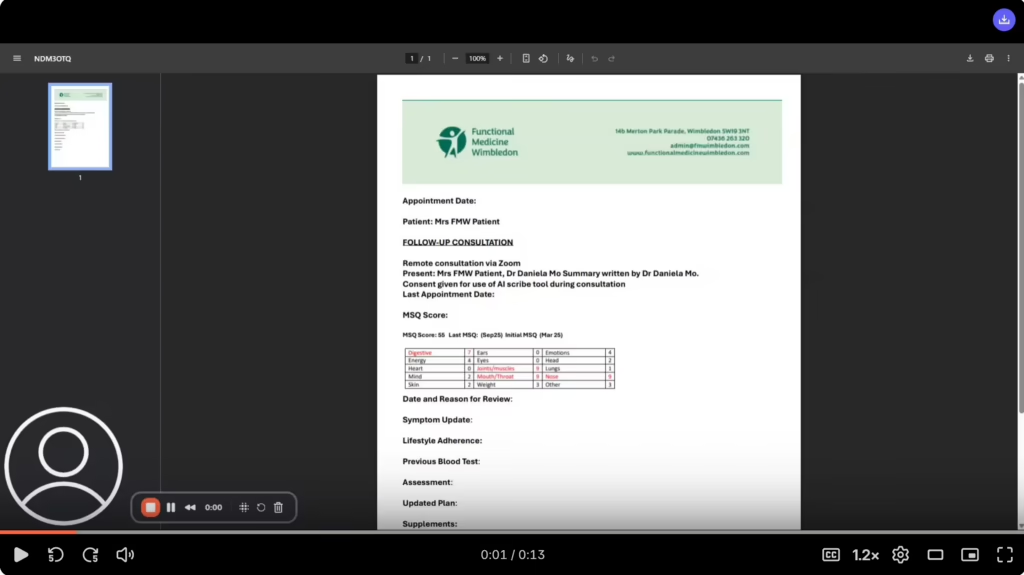
In this video, I show you how to open a document I demonstrate how to access a document by clicking on the green link provided.
and see an example of an appointment summary.
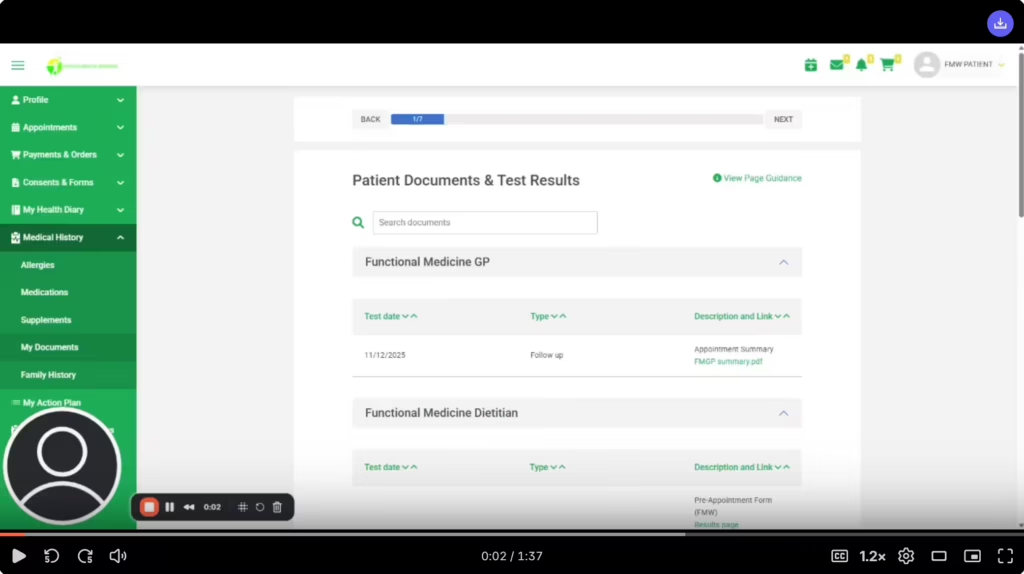
In this video, I walk you through the Functional Medicine Dietitian tab that I’ve set up to resemble what you might see after a few appointments. I’ve included an appointment summary and a supplement schedule, both accessible via the green links, which will open in separate tabs.
In this video, I explain how to search for a specific document, the example I show is a supplement schedule but the process works for any document or test result.
In this video, I walk you through the process of adding documents to your portal, such as test results and clinic letters.
In these two short videos, I walk you through the process of adding a test result to your documents area.
Family History
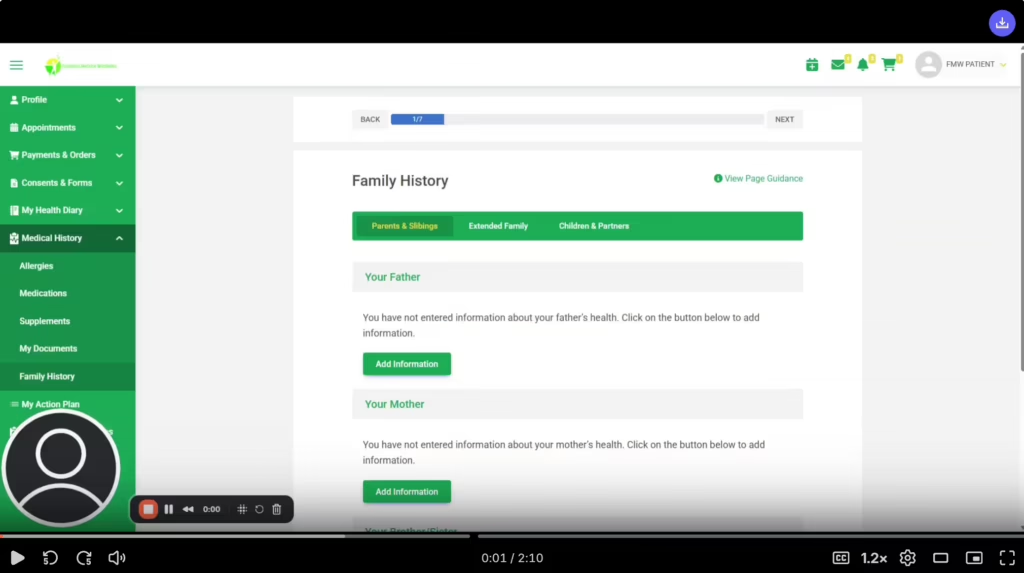
In this video, I walk you through the final optional area of the medical history form, focusing on family history. Here you can add information for parents, siblings, children, and partners, including health status and any relevant condition
MY ACTION PLAN
Lab Testing
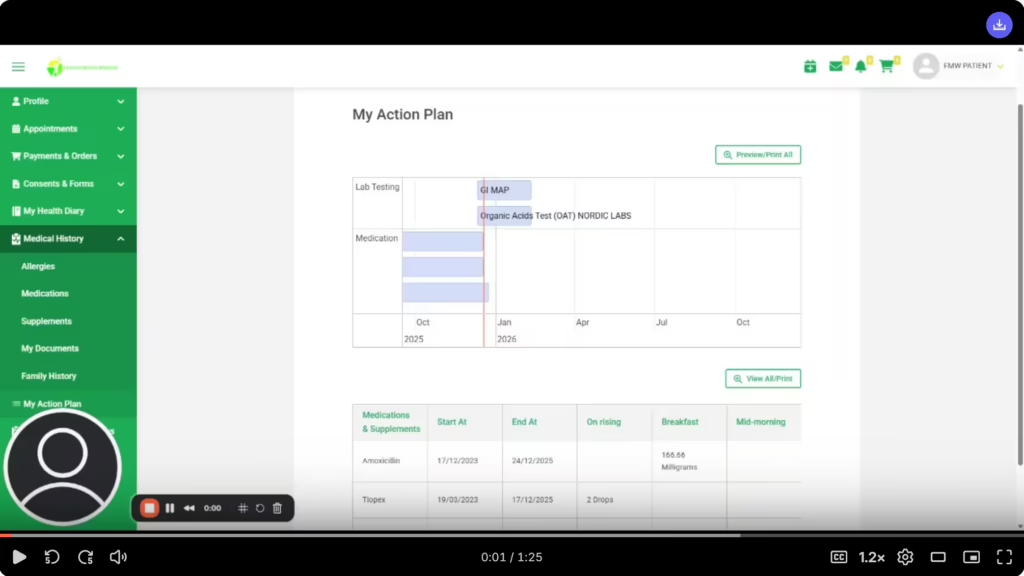
In this video, I walk you through the My Action Plan area of your portal, I show an example of where we’ve added information about some tests suggested for you. I explain how to access the detailed information about each test, including pricing, shipping instructions, and links to test instructions and video resources. To view previous test recommendations, click on the red line and move it to the left to see anything in the past.
In this video, I walk you through the My Action Plan area of your portal, I show an example of where we’ve added information about some tests. I explain how to access the detailed information about each test.
I also show you the other areas available in your Action Plan area which may be used by your practitioners from time to time ie Lifestyle Recommendations, Consumables & Supplements and Medications and supplements.
PATIENT SUMMARY NOTES
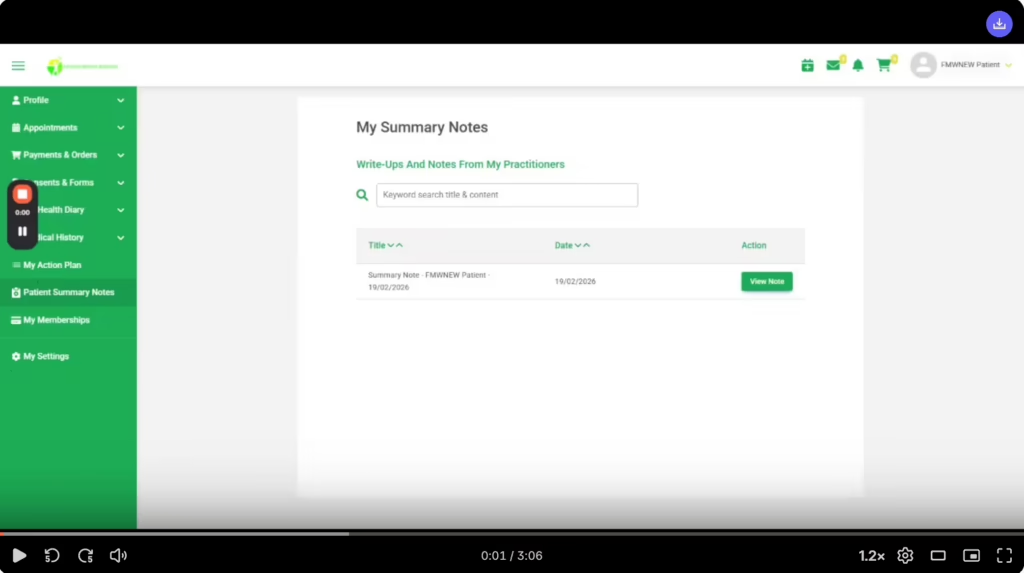
In this video, I walk you through the patient’s summary notes area, typically you’ll find a summary report following a discovery call. I also explain where else you can find documents in your portal.
MY SETTINGS
In this video, I walk you through the My Settings area in your portal. You’ll find options to change your password, update your email address, and set up SMS authentication.
ICONS AT THE TOP OF YOUR PORTAL SCREEN
In this video, I walk you through the icons located at the top right of your screen, these include calendar, messages, shopping cart and your portal icon from where you can logout of your portal.